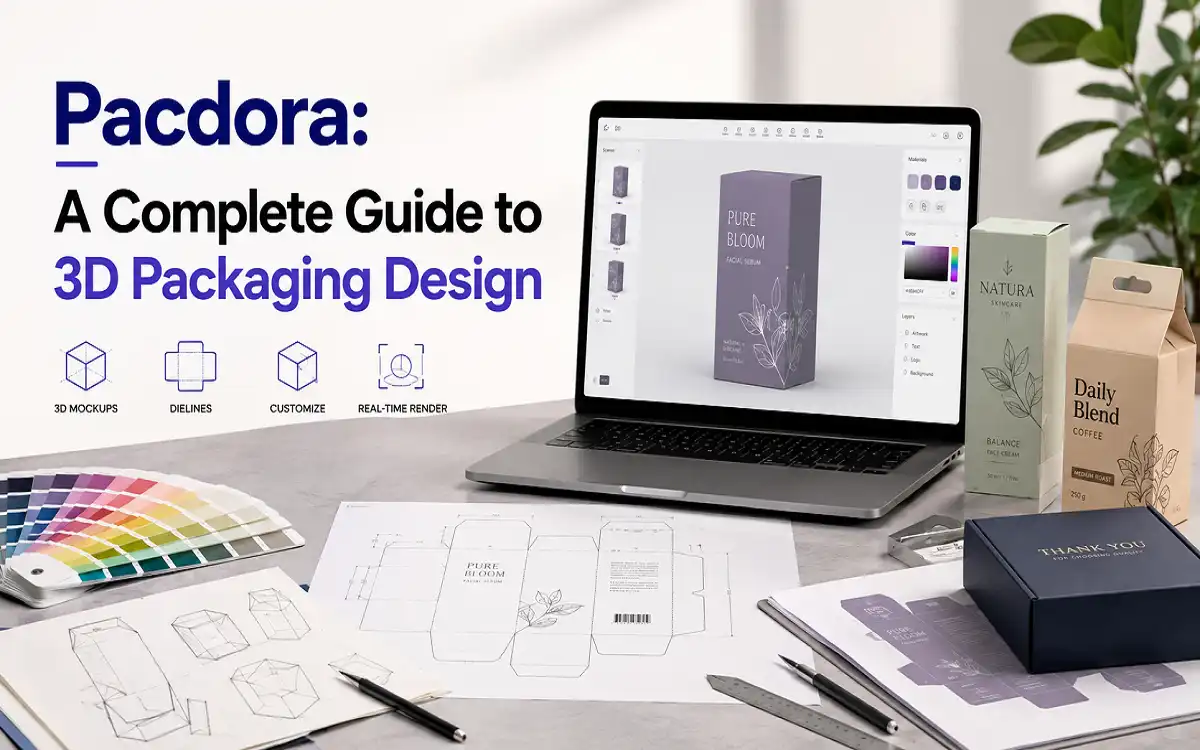

Pacdora: A Complete Guide to 3D Packaging Design
Packaging design used to mean hiring a specialist, waiting days for a prototype and still not knowing what the final box would actually look like until it came off the press. Pacdora changes that.
It puts the whole process in the browser, from structure to 3D preview to print-ready file, without needing expensive software or a technical background.
This guide covers everything. What Pacdora is, how it works, what you can do with it and where it falls short.
What Is Pacdora?
Pacdora is an online 3D packaging design tool. It runs entirely in the browser. No download. No installation. No CAD experience needed.
You pick a packaging structure, enter your dimensions, upload your artwork and get a realistic 3D mockup you can rotate, render and export. The whole workflow happens in one place.
Designers use it to build dielines fast. Brand teams use it to get client approvals without physical samples. Print companies use it to reduce errors before anything goes to press. E-commerce brands use it to create product visuals before stock arrives.
Pacdora reports over 4 million users on the platform. For a packaging-specific tool that’s a wide reach and it reflects how big the gap was before something like this existed.
Main Features of Pacdora
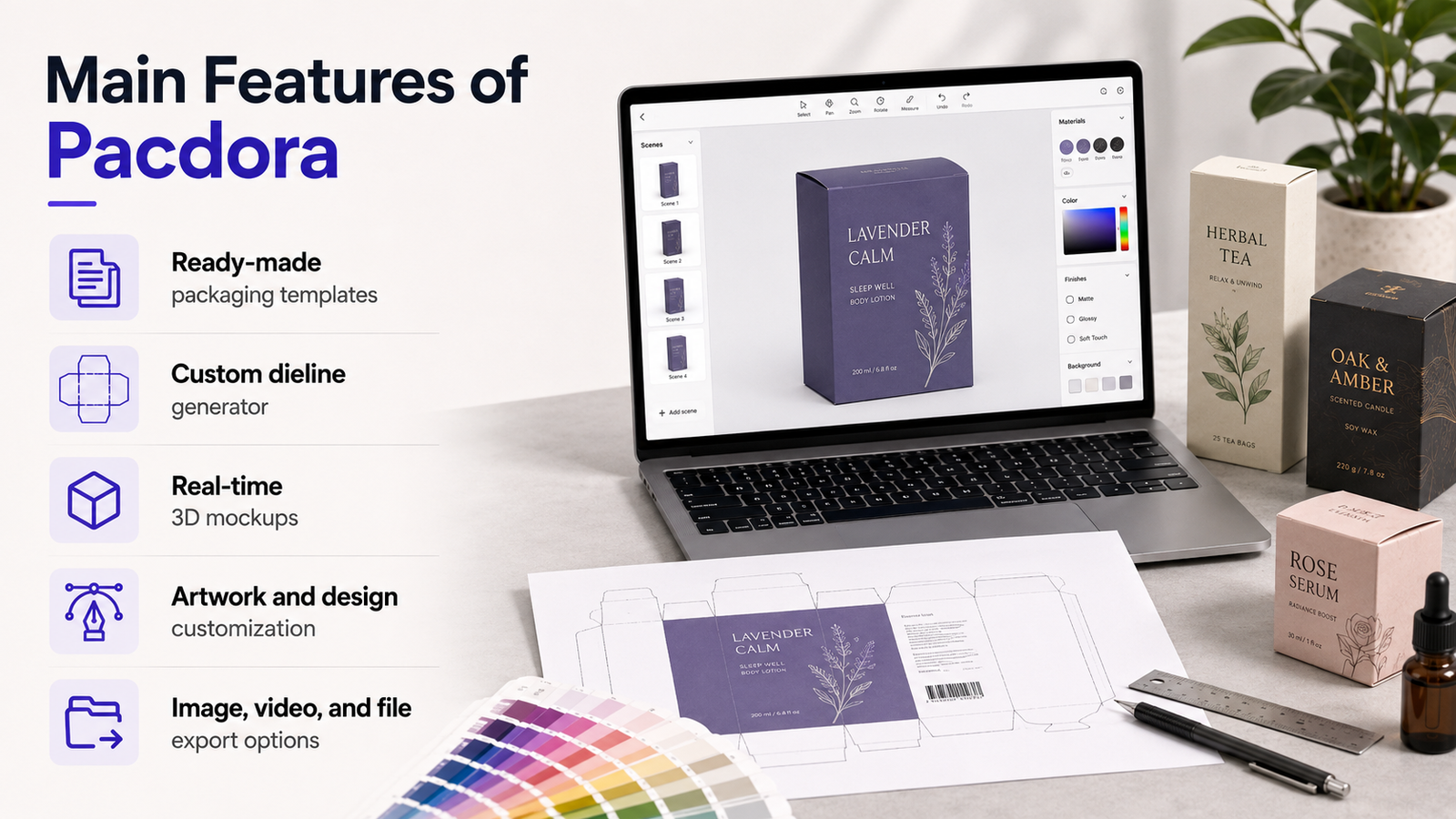

Ready-Made Packaging Templates
Pacdora has a library of 3,000+ box structures covering almost every packaging type in common use. Mailer boxes, tuck end boxes, rigid boxes, sleeve boxes, gable boxes, display boxes. If it exists in packaging it’s likely in there.
Templates come with preset dimensions you can adjust. You’re not building from scratch every time.
Custom Dieline Generator
This is one of the tools Pacdora is most known for.
Enter your box dimensions and Pacdora generates a dieline file. Download it as PDF, AI or DXF. The file comes colour-coded. Red for crease lines, blue for trim, green for bleed. Printers can use them immediately without asking questions.
Real-Time 3D Mockups
Upload your artwork and it wraps around the 3D model in real time. Rotate it. Zoom in. Check how the print sits on each panel, around the folds and along the edges.
This is where most of the value is. Seeing a flat design on a screen tells you almost nothing. Seeing it wrapped around a rotating 3D box tells you everything.
Artwork and Design Customization
Beyond uploading finished artwork you can adjust materials, textures, lighting, shadows and background within the mockup tool. Change the surface from gloss to matte. Move the light source. Add a scene background instead of a plain white canvas.
Pacdora AI takes this further. It places your packaged product into a generated background scene with matched lighting and shadows. Useful for product listings and ads when you don’t have a physical product to shoot yet.
Image, Video and File Export Options
Finished designs export as PNG for static images or MP4 for a folding animation. Dielines export as PDF, AI or DXF. QR codes and barcodes export as PNG, JPG or SVG. SVG is the right format if it’s going to print.
Higher resolution exports including 4K are available on paid plans.
Pacdora Dielines and Packaging Templates
Getting the dieline right is the most important part of any packaging project. A wrong measurement or a missing fold line means the whole thing fails at production.
Pacdora dieline generator works simply. Choose your packaging style from the template library. Enter the internal dimensions. Specify material thickness if needed. Pacdora calculates the rest and generates a complete dieline with all panels, flaps and fold lines in the correct positions.
The output file is print-ready. Colour-coded lines give printers clear instructions with no room for misreading. Download in AI if you want to edit further in Illustrator. PDF works for most printers directly. DXF is for CAD-based production workflows.
The template library spans rigid boxes, folding cartons, mailer boxes, tuck end styles, sleeve boxes and more. Custom dimensions are supported across the range so you’re not forced into standard sizes.
Creating 3D Packaging Mockups with Pacdora
The mockup tool is where the design becomes visible.
Once you have a structure, open the corresponding mockup in Pacdora’s library. Upload your artwork file. The design applies to the surface of the 3D model automatically. From there you can rotate the box to see every angle, zoom in on specific panels, check how artwork behaves around corners and folds and confirm that key design elements land where they’re supposed to.
The library has 5,000 to 7,000 mockups across box types, tubes, bottles, pouches, cans, bags and more. Everything runs in the browser. No software needed on your end.
When the preview looks right, export. PNG for a static shot. MP4 if you want the folding animation for a listing or a presentation. Higher resolution options are available on Pro plans.
Rendering and Visual Customization
A plain white background with flat lighting doesn’t show a packaging design at its best. Pacdora’s rendering tools give you more control than that.
Inside the mockup tool you can adjust the material surface. Switch between gloss, matte, kraft and other finishes to see how each affects the look. Change the lighting direction and intensity. Add shadows to ground the box visually. Set the camera angle to match how the product would sit on a shelf or in a photo.
Pacdora’s cloud rendering technology then processes the final image. It adds accurate shadows, lighting response and surface texture. The result looks closer to a product photograph than a standard mockup render. Pacdora says 4K renders process in under a minute in the browser. Local software like C4D or KeyShot can produce better results but takes much longer and costs a lot more.
A digital mockup can show the approximate placement of special finishes, but understanding the physical difference between embossing and debossing is essential before specifying the final packaging surface.
The Pacdora AI background tool goes one step further. It removes the plain background and places the product into a generated scene. Lighting and shadows adjust to match the product angle. Good for ads, social content and listings when physical photography isn’t possible yet.
How to Use Pacdora Step by Step
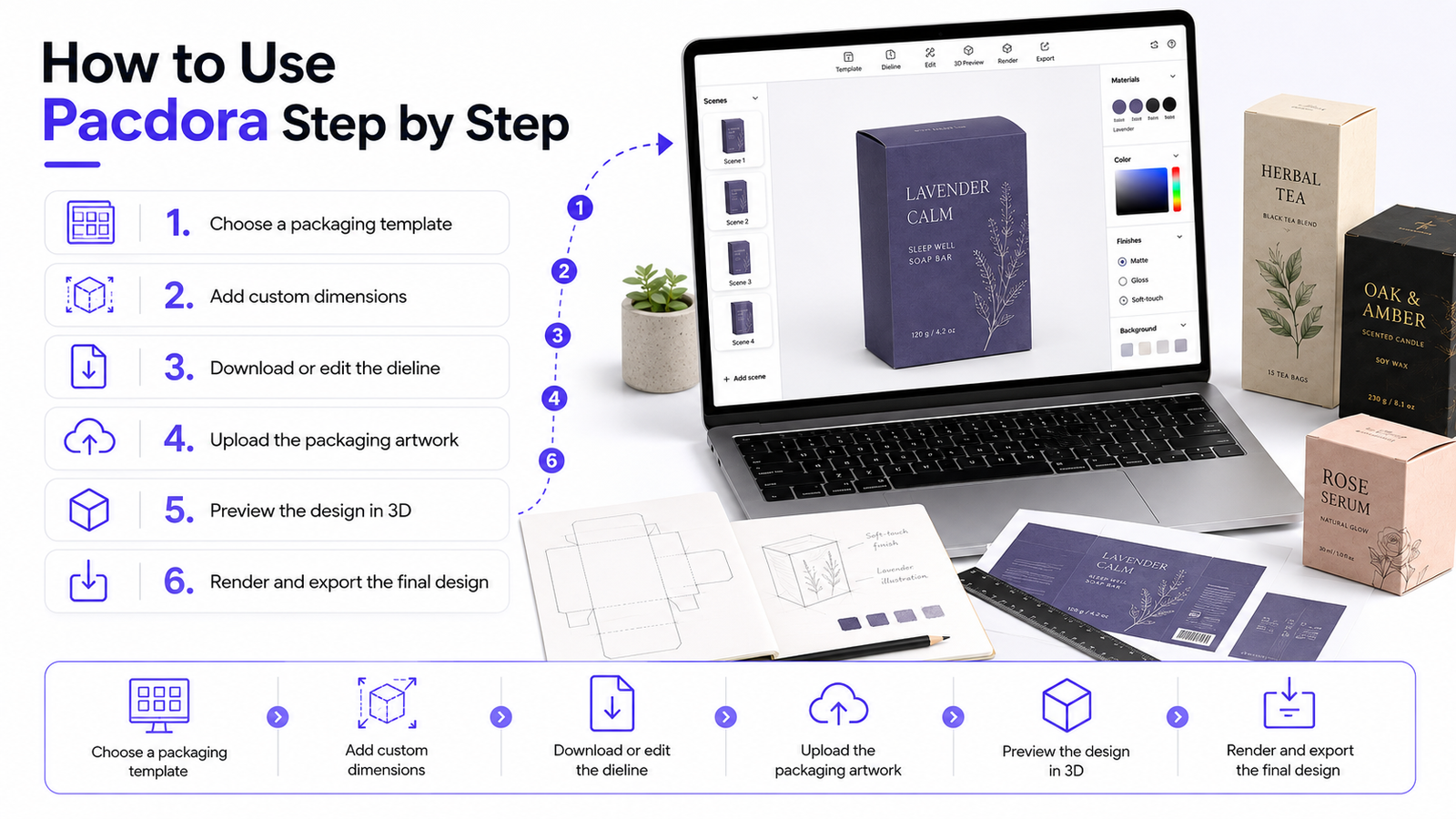
Step 1: Choose a packaging template
Browse the library by box type. Filter by structure or search by name. Pick the one that matches your product.
Step 2: Add custom dimensions
Enter the internal width, length and depth for pacdora packaging. Add material thickness if your printer has specified it. Pacdora adjusts the dieline accordingly.
Step 3: Download or edit the dieline
Export the dieline as PDF, AI or DXF. If the structure needs adjustments, open the AI file in Illustrator and edit from there. If it’s correct, send it straight to your printer.
Step 4: Upload the packaging artwork
Open the matching mockup in the 3D tool. Upload your design file. It maps to the panels of the 3D model automatically.
Step 5: Preview the design in 3D
Rotate the model. Check every angle. Confirm that text, logos and key elements are positioned correctly and aren’t sitting on or near any fold lines.
Step 6: Render and export the final design
Adjust lighting, material and background. Run the render. Export as PNG or MP4. Share with clients, upload to listings or use in ads.
Pacdora Pricing and Plans
Pacdora has a free version and a paid Pro plan.
Free plan covers basic access to templates, the mockup tool and standard export options. Enough to test the platform and handle simpler projects. Resolution is limited on free exports.
Pro plan is around $29 per month. It unlocks the full template and mockup library, 4K rendering, complete dieline downloads in all file formats and higher resolution image exports. For anyone using Pacdora regularly the Pro plan is the one that makes sense.
Enterprise and SDK options are available for print companies who want to embed a 3D customiser into their own website. Customers can design, preview and approve packaging directly before ordering. This is a different tier built for web-to-print workflows.
Pacdora also offers a free trial so you can test Pro features before committing. Promo codes appear occasionally and reduce the cost further.
Who Should Use Pacdora?
Graphic designers who need to generate dielines quickly without building from scratch in Illustrator or learning structural CAD tools.
Packaging companies using it to reduce client approval time and catch errors before production. Showing a client a rotating 3D mockup gets faster sign-off than a flat PDF.
Startups and small brands who need professional-looking packaging visuals but don’t have the budget for a studio shoot or a packaging engineer.
E-commerce brands building product listings before stock arrives. The AI background and export tools are useful here.
Agencies managing packaging projects across multiple clients. The template library and fast export workflow keep turnaround short.
Print companies looking to give customers a better ordering experience through embedded 3D preview tools via the API.
Is Pacdora Suitable for Print Production?
Pacdora generates print-ready dielines but there are a few things to check before anything goes to press.
Dimensions. Confirm the internal dimensions match your product exactly. A few millimetres off can mean a box that won’t close properly.
Before entering values into the dieline generator, confirm the correct length, width and height dimensions and whether your supplier requires internal or external measurements.
Bleed areas. Make sure your artwork extends into the bleed zone. Pacdora marks this on the dieline but your design file needs to account for it too.
Resolution. Artwork uploaded to Pacdora mockup preview doesn’t need to be high resolution but the file you send to print does. 300 DPI minimum for most print jobs.
Colour mode. Screen colours are RGB. Print needs CMYK. Convert your artwork before sending to production or colours will shift.
Folds and material thickness. Thicker materials affect how folds sit. Confirm the thickness you’ve entered in Pacdora matches what your printer is actually using.
Printer approval. Always get a physical proof before a full print run. The 3D preview is a useful approximation. It’s not a substitute for holding the actual box.
Common Mistakes to Avoid
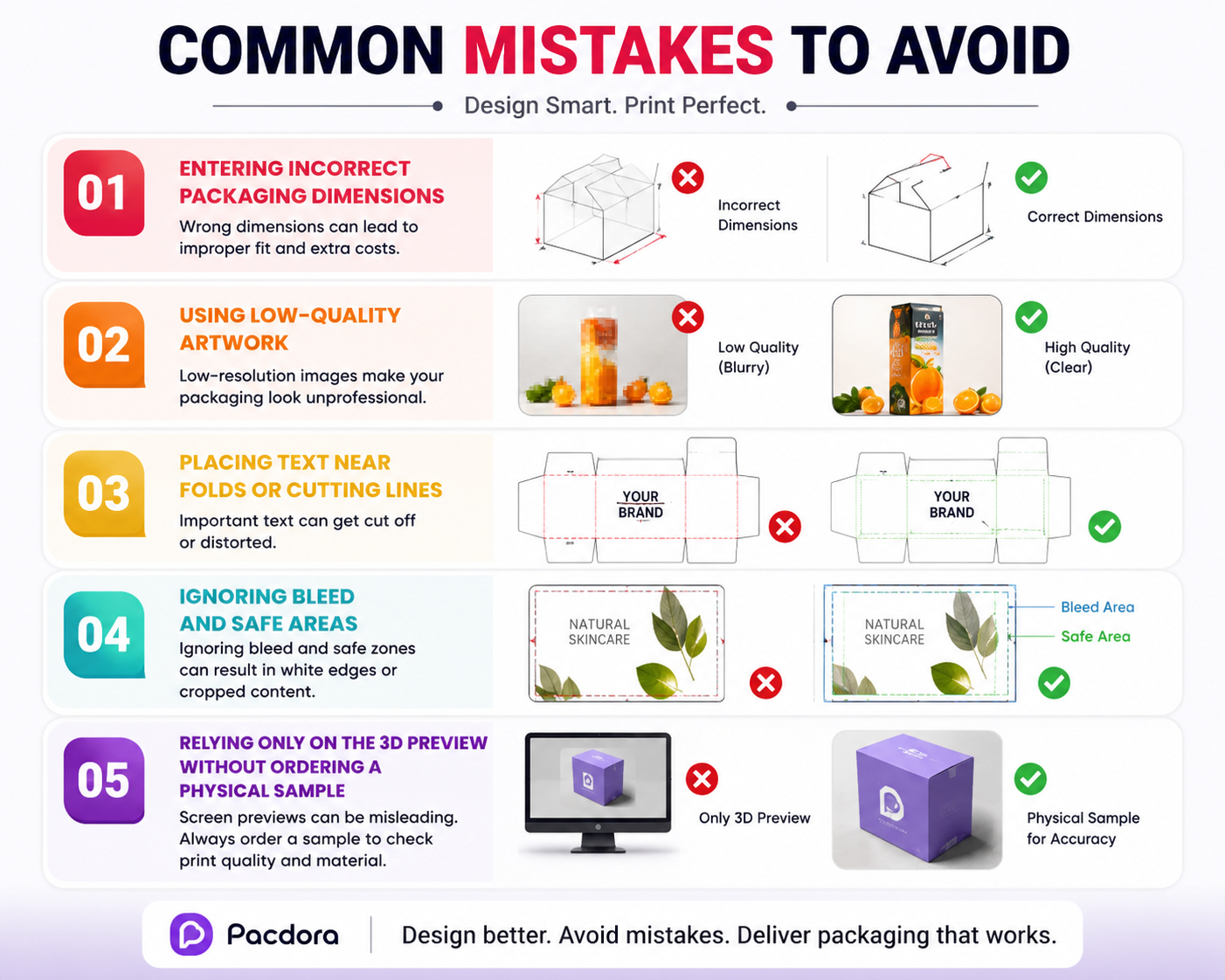

Entering incorrect dimensions. Measure your product carefully. Measure it again. A box built on wrong dimensions fails at the fold.
Using low-quality artwork. Mockup previews can look fine at low resolution. Print will not. Use high-resolution files for production.
Placing text near folds or cutting lines. Text that sits near a crease line will look distorted on the finished box. Keep important elements well inside the safe area.
Ignoring bleed and safe areas. Cutting machines aren’t perfect. Any design element too close to the trim line risks being cut off.
Relying only on the 3D preview. The 3D render shows you a lot but it doesn’t replicate how the physical material folds or how ink sits on textured surfaces. Order a sample before committing to a full run.
Benefits and Limitations of Pacdora
What it does well:
It’s fast. A dieline that would take an hour in Illustrator takes a few minutes in Pacdora. The 3D mockup tools are good enough for most client approval workflows. The library is large. The pricing is accessible. And the browser-based setup means anyone on a team can access it without installing software.
Where it falls short:
Pacdora is template-driven. If your packaging needs a completely custom structure that doesn’t exist in the library, you’ll hit a wall. For highly engineered or unusual structures you still need a specialist CAD tool or a packaging engineer. The 3D renders are good but not photorealistic compared to high-end local rendering software. And editing isn’t supported on mobile devices which is a limitation for teams working across devices.
For most brand, marketing and print-sales workflows these limitations won’t matter. But for complex structural work they will.
FAQs
Is Pacdora free?
Yes. The free plan gives access to basic templates, mockup tools and standard exports. It’s enough to test the platform. The Pro plan unlocks 4K exports, the full library and complete dieline downloads.
What is Pacdora AI?
Pacdora AI refers to the background generator tool. It takes your product mockup and places it into a generated scene with matched lighting and shadows. Used mainly for product listings and ads.
How much does Pacdora cost?
The Pro plan is around $29 per month. A free plan is available with limited features. Enterprise pricing is separate and based on usage and integration needs.
Is Pacdora legit?
Yes. It’s a real platform with over 4 million reported users. Print companies, brand teams and packaging designers use it for dieline generation, 3D mockups and client approvals. The dieline exports are print-ready and the tool is widely referenced in packaging industry workflows.
Can I cancel my Pacdora subscription?
Yes. Pacdora subscriptions of packaging app can be cancelled. Check their billing settings directly for the cancellation process as terms can vary by plan type.